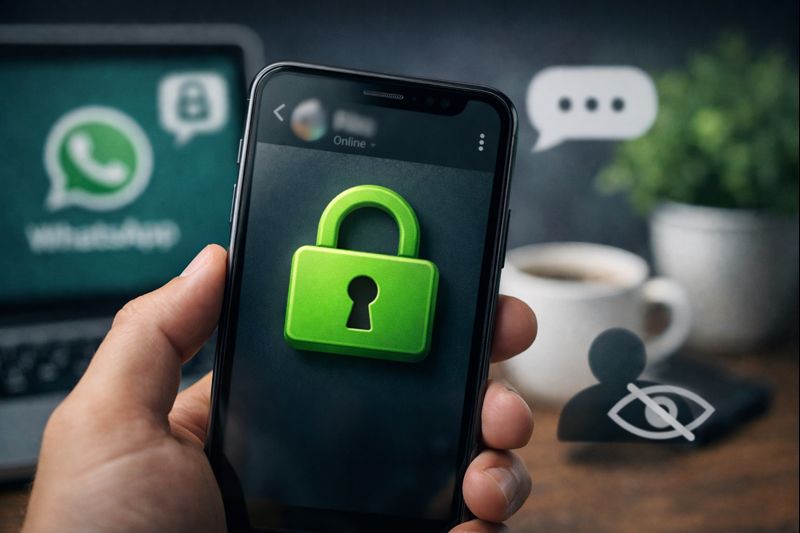
WhatsApp is one of the most widely used messaging platforms in the world. Millions of people rely on it every day for personal chats, work communication, and business conversations. However, not everyone feels comfortable showing their online activity to others. This is why many users look for ways to hide their online status on WhatsApp.
If you want more privacy and control over who can see your activity, WhatsApp offers built-in settings to manage this easily. In this guide, you will learn how to hide your online status step by step, along with useful privacy tips to improve your overall WhatsApp experience.
What Does “Online” Status Mean on WhatsApp?
When you open WhatsApp, your contacts may see you as “Online.” This simply means the app is active on your device. It does not confirm that you are chatting with someone or reading messages.
WhatsApp also shows “Last Seen,” which indicates the last time you were active on the app. Some users like this feature, but others prefer to keep their activity private to avoid unnecessary attention or pressure to reply quickly.
Fortunately, WhatsApp allows you to control both “Online” and “Last Seen” visibility.
Why People Choose to Hide Their Online Status
There are many valid reasons why users prefer to hide their online status on WhatsApp:
- To maintain personal privacy
- To avoid social pressure to respond instantly
- To prevent others from tracking their activity
- To keep work and personal life separate
- To use WhatsApp quietly without interruptions
Privacy is a personal choice, and WhatsApp gives users the flexibility to decide what information they want to share.
Important Things to Know Before Hiding Online Status
Before changing your settings, keep these points in mind:
- If you hide your Last Seen and Online status, you will not be able to see others’ status either
- Hiding online status does not block messages or calls
- Read receipts (blue ticks) work separately unless disabled
- Contacts can still see when you are typing a message
This privacy system works on a mutual basis to protect everyone equally.
How to Hide Online Status on WhatsApp (Step-by-Step)
The steps are almost identical on Android and iPhone. Make sure your WhatsApp is updated to the latest version.
Step 1: Open WhatsApp
Launch the WhatsApp app on your phone.
Step 2: Go to Settings
- On Android: Tap the three dots in the top-right corner and select Settings
- On iPhone: Tap Settings at the bottom of the screen
Step 3: Open Privacy Settings
Tap Privacy to view all privacy-related options.
Step 4: Tap “Last Seen and Online”
This section controls who can see your activity.
Step 5: Hide Your Last Seen
Under “Last Seen,” select Nobody to completely hide your last active time.
You can also choose:
- Everyone
- My Contacts
- My Contacts Except
Step 6: Hide Your Online Status
Under “Who can see when I’m online,” select Same as Last Seen.
This ensures that if your Last Seen is hidden, your Online status will also be hidden.
Step 7: Save Settings
The changes are saved automatically. Once done, your online visibility will be hidden.

WhatsApp Tracking
✅ WhatsApp Scan Complete
- Status : Busy
- Last Seen : 17 minutes ago
- Profile Picture : Available
- Encrypted : Yes
- Device : Desktop
Additional Privacy Settings You Should Use
Hiding your online status is just one part of staying private on WhatsApp. You can further improve privacy using these options.
Control Profile Visibility
You can choose who sees your profile photo, About info, and Status updates.
Go to Settings > Privacy and adjust:
- Profile Photo
- About
- Status
Select options like My Contacts or Nobody for better control.
Disable Read Receipts
If you do not want others to know when you read their messages:
Go to Settings > Privacy > Read Receipts
Turn off the toggle
Note: This also disables blue ticks for you.
Manage Group Privacy
To stop unknown people from adding you to groups:
Go to Privacy > Groups
Select My Contacts or My Contacts Except
This reduces spam and unwanted group invitations.
Secure WhatsApp Web Usage
If you use WhatsApp Web, always log out after use.
Check Settings > Linked Devices regularly and remove unknown sessions.
Common Problems and How to Fix Them
Sometimes users feel their online status is still visible. Here are common causes and solutions:
- WhatsApp Web is still active → Log out from linked devices
- Settings not applied properly → Recheck Privacy settings
- Outdated app version → Update WhatsApp
- Online visibility not set to “Same as Last Seen” → Correct the option
Fixing these usually resolves the issue.
Benefits of Hiding Online Status
Hiding your online status offers several advantages:
- Improved privacy
- Less stress and social pressure
- Better control over communication
- Peaceful and distraction-free usage
- Professional boundaries for work contacts
Many users find WhatsApp more comfortable after enabling these settings.
Extra Tips to Stay Safe on WhatsApp
For stronger privacy protection, follow these habits:
- Lock WhatsApp using fingerprint or face lock
- Avoid sharing sensitive information in groups
- Review privacy settings regularly
- Log out from unused devices
- Avoid public or shared computers
These small steps greatly improve account safety.
Final Thoughts
Managing privacy on WhatsApp is simple and effective. By hiding your online status, you gain more control over your digital presence and avoid unnecessary pressure. The process works smoothly on both Android and iPhone devices.
WhatsApp’s privacy features are designed to help users communicate comfortably and securely. Use them wisely to enjoy a calm and private messaging experience.
Stay private. Stay secure. Use WhatsApp on your own terms.