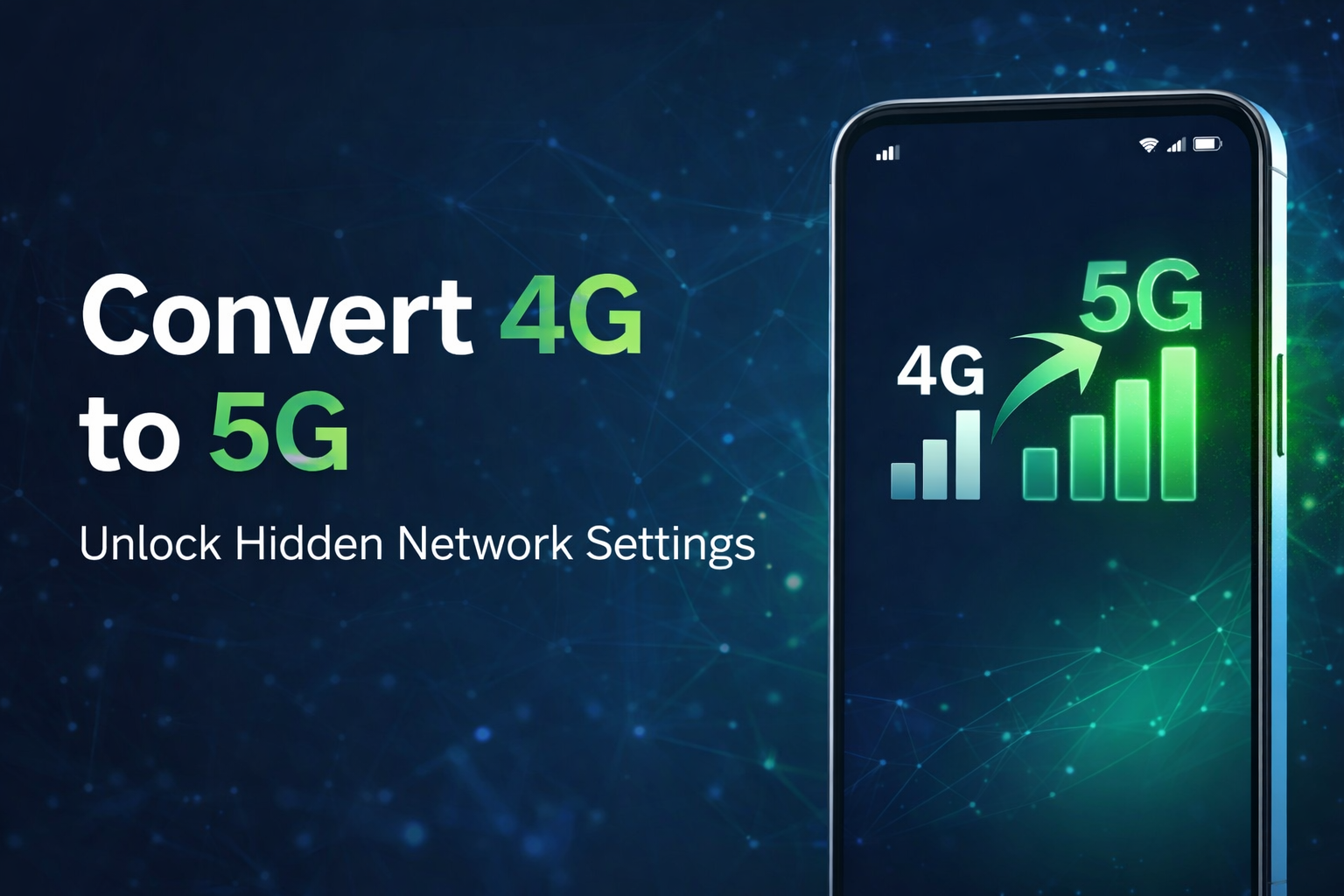
Many Android users want to access hidden network options on their phones, such as forcing LTE/4G or even using mobile data in Airplane mode. Normally, this can be done using Android secret dialer codes, but the problem is that these secret codes don’t work on every device.
If you are facing the same issue, the Force LTE Only 4G 5G app is a reliable solution. This app provides access to Android’s hidden network settings without requiring you to remember or use any secret codes.
In this article, we will explain what the Force LTE Only app is, its features, and how you can use it step by step.
This app is particularly useful for those who want complete control over their mobile data experience.
What is Force LTE Only (4G/5G) App?
Force LTE Only (4G/5G) is a powerful Android application that helps users open hidden phone information and network configuration menus. These are the same menus that are usually accessed through secret Android dialer codes.
With this app, you can manually select network modes, view phone and Wi-Fi information, check signal strength, and in some cases even use mobile data while Airplane mode is enabled, depending on your device compatibility.
This app is especially useful for users whose phones block secret codes or do not support them properly.
Key Features of Force LTE Only (4G/5G)
Here are some of the main features that make this app popular among Android users:
-
Access Android secret network settings without dialer codes
-
Force LTE / 4G / 5G network modes
-
Option to use the internet in Airplane mode (device dependent)
-
Detailed phone information settings
-
Network usage statistics
-
Wi-Fi information and signal details
-
Multiple working methods for different Android phones
-
dBm meter to check signal strength
-
Clean interface with Dark Mode support
These features make the app useful for both regular users and advanced Android users.
How to Use Force LTE Only (4G/5G) App on Android
Using this app is very simple. Follow the steps below:
Step 1: Install the App
Go to the Google Play Store and search for Force LTE Only (4G/5G). Download and install the app on your phone.
Step 2: Open and Grant Permissions
After installation, open the app and tap on Next. Grant the required permissions so the app can access phone information properly.
Step 3: Choose a Method
Once inside the app, you will see multiple options or methods. These methods vary based on Android versions and phone brands.
-
If your phone is running Android 10 or below, select Method 1.
-
Tap on 4G Method 1, which will open the hidden Phone Info settings.
Step 4: Enable Mobile Radio Power
Inside the Phone Info menu, enable or toggle the Mobile Radio Power option. After this, you may be able to use mobile data even while Airplane mode is turned on (results depend on device support).
Important Tips for Better Performance
-
Always keep the app updated to avoid bugs or crashes
-
Grant all required permissions for smooth functionality
-
Restart your phone if any option does not work properly
-
Read user reviews on the Play Store for device-specific tips
-
Keep your Android software updated for better compatibility
Is Force LTE Only (4G/5G) Safe to Use?
Yes, the app is generally safe when downloaded from the official Google Play Store. It does not hack your phone; it simply opens system settings that already exist on Android devices. However, features may vary depending on phone brand, Android version, and carrier restrictions.
Final Thoughts
If Android secret codes are not working on your phone, the Force LTE Only (4G/5G) app is an excellent alternative. It provides easy access to hidden network settings, improves network control, and offers useful diagnostic tools — all in a user-friendly interface.
For users who like exploring advanced Android features without rooting their devices, this app is definitely worth trying.